
Sometimes the Castle app not working issue can happen on different devices. You may face problems like crashing, buffering, installation errors, or playback issues. Most of these problems are common and easy to fix. No technical knowledge is required.
This guide will help you fix Castle APK problems on Android, PC, and TV devices. Follow the solutions below to get the app working smoothly again.
Common Causes of Castle App Problems
The Castle app may stop working for different reasons. Most issues are linked to simple problems that can be fixed quickly once you understand the cause.
Outdated App Version
Using an outdated version of Castle APK can lead to many problems. Older versions may not support new features or recent fixes. This can cause the app to crash, freeze, or fail during playback. You may also face issues like a black screen or slow loading. Developers regularly release updates to improve performance and fix bugs. Always use the latest version v2.1.0 to ensure smooth streaming, better stability, and access to new improvements.
Poor Internet Connection
A slow or unstable internet connection is one of the main reasons for buffering and streaming issues. Castle APK needs a steady connection to load videos properly. If your network is weak, videos may take longer to start or may pause frequently. Live streaming may also lag or disconnect. Using a stable WiFi connection or faster mobile data can help improve performance and reduce interruptions while watching content.
Device Compatibility Issues
Castle APK works best on supported devices. If your device does not meet the minimum requirements, the app may not open or may crash often. Older devices with low RAM or outdated software may struggle to run the app smoothly. This can lead to slow performance and errors during use. Always check that your device supports Android 6.0 or above for better results.
Corrupted App Files
Sometimes the APK file may be damaged or incomplete. This can happen if the download is interrupted or if the file source is not reliable. Corrupted files can prevent the app from installing or working correctly. Re-downloading the APK file from the official website usually fixes this issue.
Fix Castle App Not Working Issues
App Not Opening or Crashing
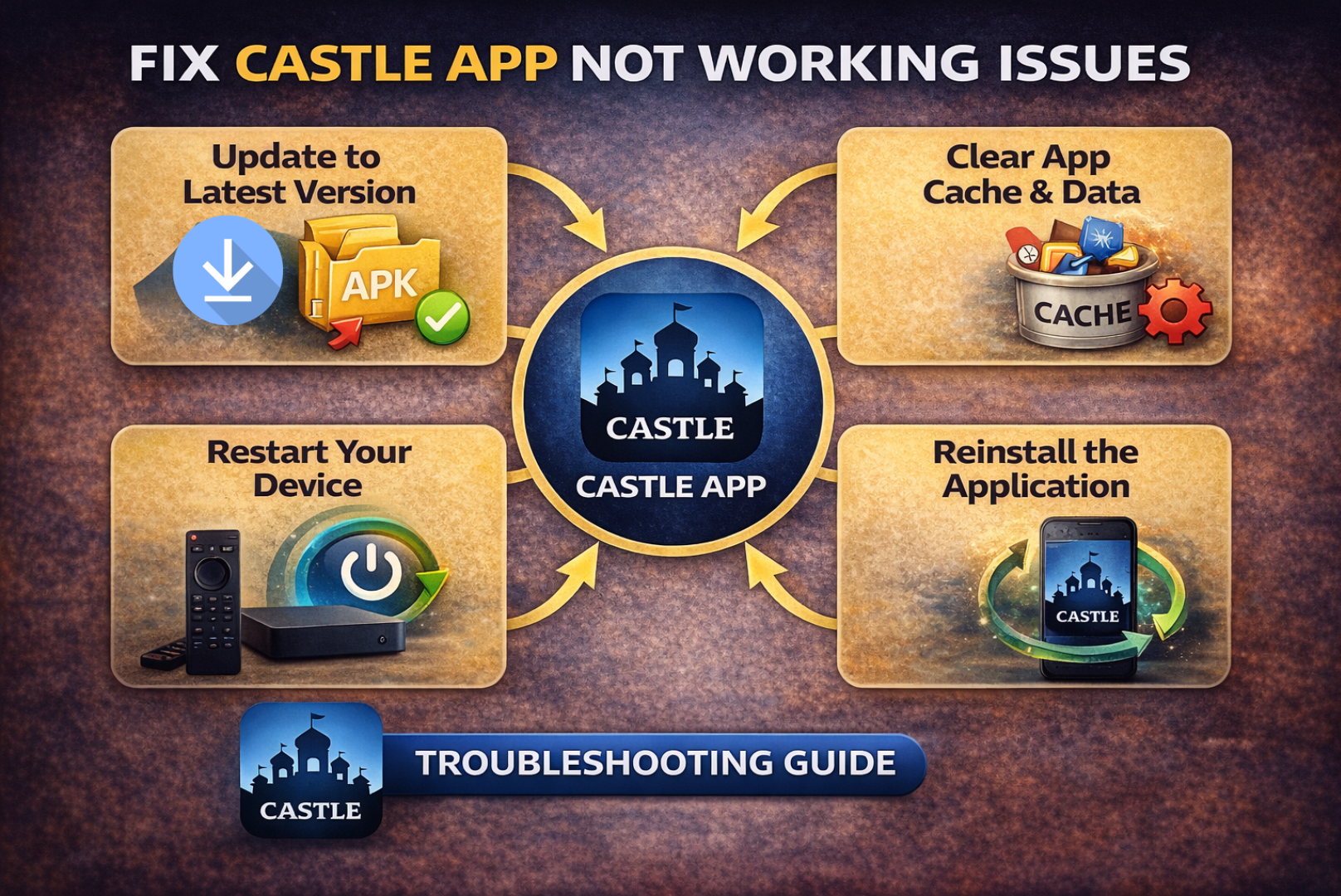
If the app is not opening or keeps crashing, try updating to the latest version. Restart your device and clear app cache. If the problem continues, reinstall the app. This removes broken files and fixes most crashing issues.
Buffering or Slow Streaming
Buffering usually happens due to slow internet. Switch to a faster network or use WiFi instead of mobile data. You can also lower video quality to reduce buffering. Version v2.1.0 includes better streaming optimization for smoother playback.
Black Screen or Playback Error
If you see a black screen or playback error, try switching to another streaming link. Castle APK provides multiple links for each video. You can also use an external player like VLC for better playback support.
App Not Installing on Device
If the app is not installing, check if unknown sources are enabled. Without this, APK files cannot be installed. Also, make sure you have enough storage space. Download the file again if needed.
No Sound or Audio Issues
If there is no sound, check your device volume first. Then try restarting the app. You can also switch to another player or stream link. External players often fix audio problems.
Step-by-Step Fixes for Castle App Errors
Update to the Latest Version
Always use the latest version v2.1.0. Updates include bug fixes and performance improvements.
Download the latest Castle APK version and install it.
Clear App Cache and Data
Clearing the cache helps remove temporary files that may cause errors.
- Go to Settings
- Open Apps
- Select Castle APK
- Tap Clear Cache
You can also clear data if needed.
Restart Your Device
Restarting your device refreshes system processes. This can fix many minor issues.
Turn your device off and on, then open the app again.
Reinstall the Application
If problems continue, uninstall the app completely. Then download and install it again.
This removes corrupted files and resets the app.
Fix Streaming Problems on PC, TV, and Mobile
Improve Internet Speed and Stability
Use a stable internet connection for better streaming. Avoid weak networks. Recommended speeds:
- 5 Mbps for HD
- 10 Mbps for Full HD
Adjust Video Quality Settings
Lower video quality if buffering happens. This reduces the load on your internet. Switch from 1080P to 720P or 480P if needed.
Close Background Apps
Running too many apps can slow down your device. Close unused apps to improve performance. This helps Castle APK run smoothly.
Use Compatible Devices Only
Make sure your device supports the app. Use Android 6.0 or above for mobile. For TV, use Android-based devices only. Unsupported devices may not run the app properly.
Installation Issues and Solutions
Enable Unknown Sources
APK installation requires unknown sources to be enabled.
- Go to Settings
- Open Security
- Enable Unknown Sources
This allows installation from outside the Play Store.
Check Storage Space
Make sure your device has enough storage. The app size is around 54.2 MB. Low storage can stop installation.
Install from the Castle APK Official Website
Always download from the official website to ensure you get a safe and working APK file. Avoid outdated or modified files.
Fix Installation Block Errors
If installation is blocked, check your device settings. Some devices restrict unknown apps. Allow permission for your browser or file manager to install APK files.
Conclusion
Castle APK issues are common but easy to fix. Most problems happen due to outdated versions, slow internet, or device settings. By following the steps above, you can fix crashing, buffering, and installation problems quickly. Always use the latest version v2.1.0 and a stable internet connection for the best experience.
FAQs
Why is the Castle App not working on my device?
It may be due to an outdated version, slow internet, or an unsupported device. Updating the app and checking your connection usually fixes the issue.
How do I fix the Castle App buffering issue?
Use a faster internet connection and lower video quality. You can also switch streaming links for better performance.
Why is the Castle App not installing?
This happens if unknown sources are disabled or storage is full. Enable the setting and free up space, then try again.
How do I update Castle App?
Download the latest version v2.1.0 APK file, and install it over the old version. This updates the app with new fixes and features.